Click on a section title to jump down the web-page:
A. Introduction
1. In Chapter 6, you learned some basic ways to add content to a web page.
2. In this chapter, you will learn about several other types of content you may insert on a page.
3. These elements are “block content”; you may insert them in any area of a section layout.
B. PDF file
1. A PDF content block presents a single PDF file in a frame that allows the website visitor to navigate through the document, print it, or download it.
2. PDF files look and function best in a single-column section.
3. Select the Content block to which you want to add a PDF document by clicking on a + Add content link.
4. A sidebar opens, displaying the types of block content.
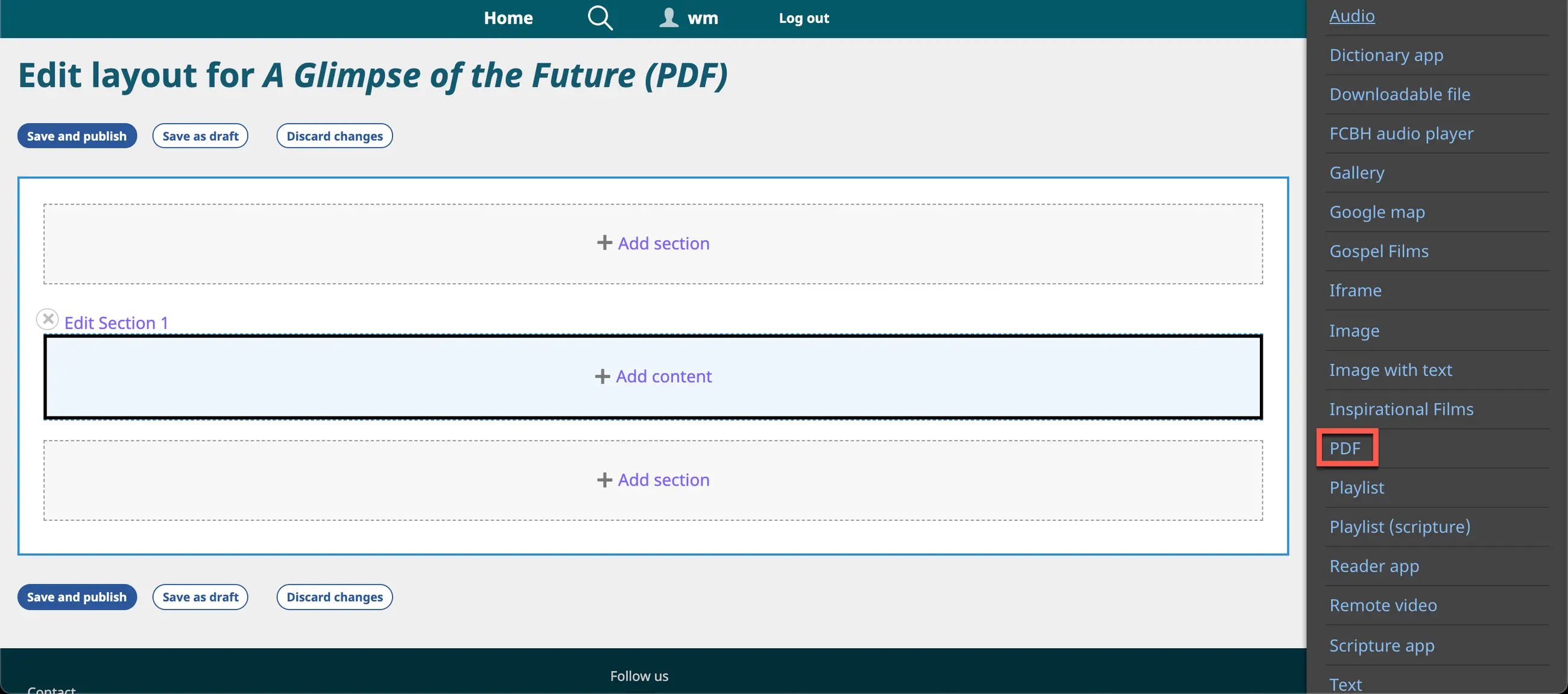
Content block sidebar
5. Click on the option PDF.
6. A new sidebar opens with features to select and configure a PDF file.
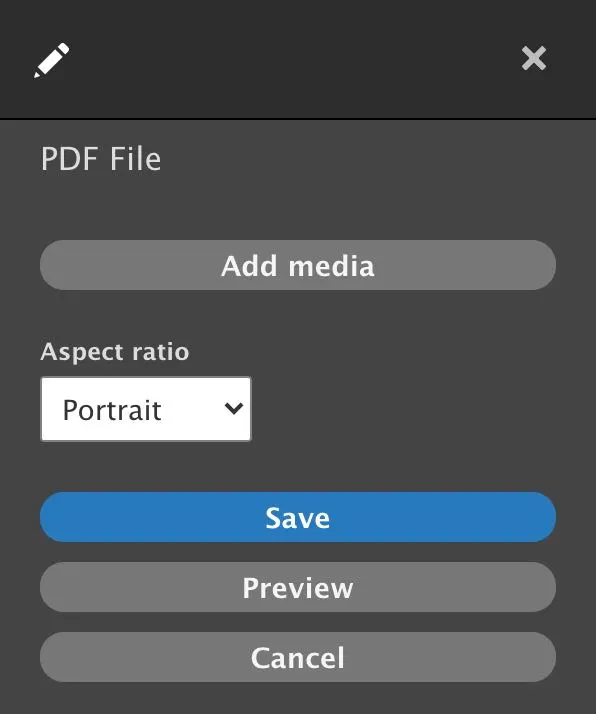
PDF sidebar
7. Click on the Add media button.
a) The Add or select media working box opens.
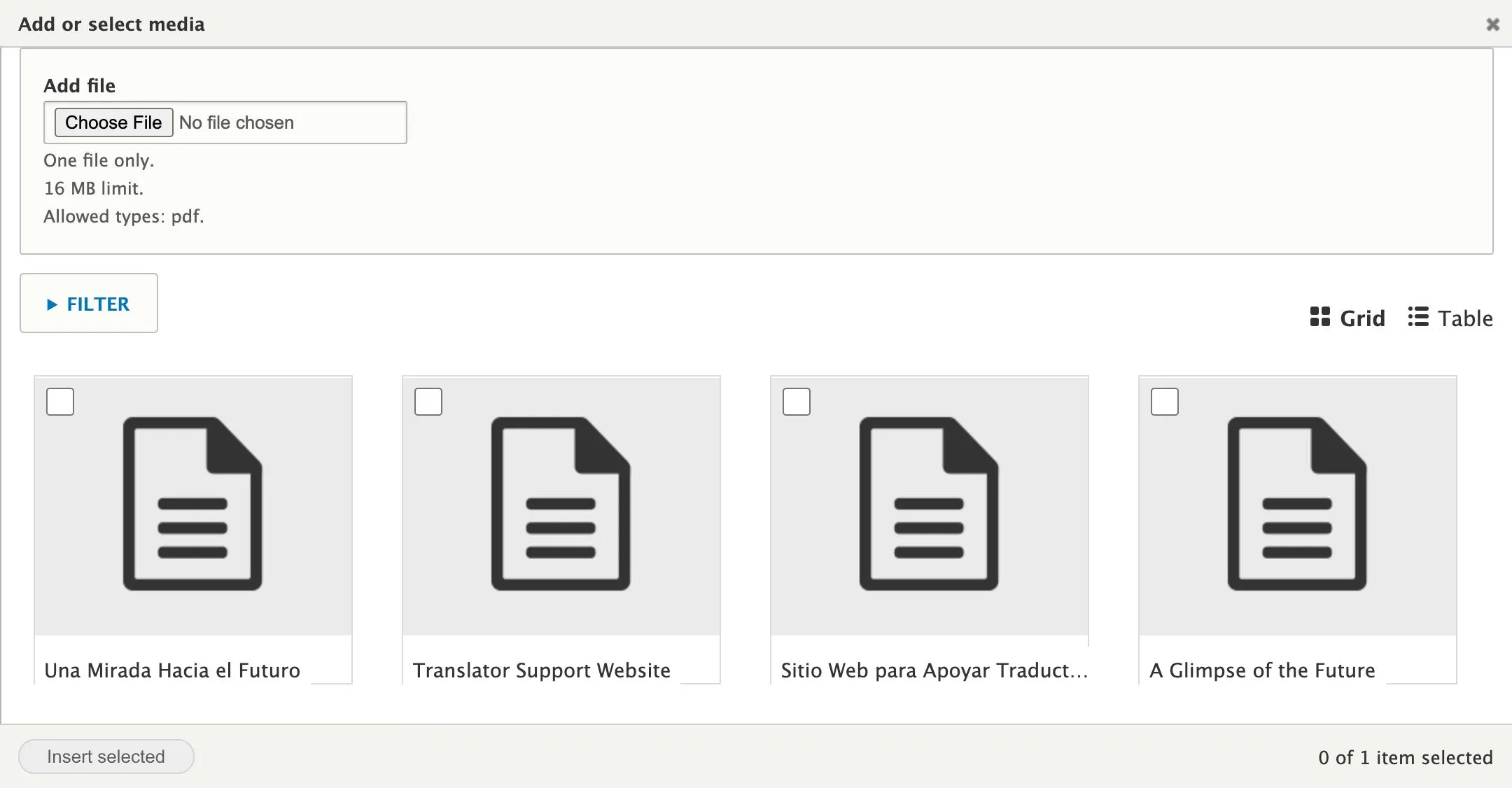
Add or select media working box
b) You may use the upper section of the working box to select a PDF file from your computer.
c) If you have already uploaded PDF files to your website, they will appear in the lower section of the working box.
d) Select a file by clicking on the square in the upper left corner of the file thumbnail.
1) You may only select one file per viewer frame.
e) Click on the Insert selected button at bottom left of the working box.
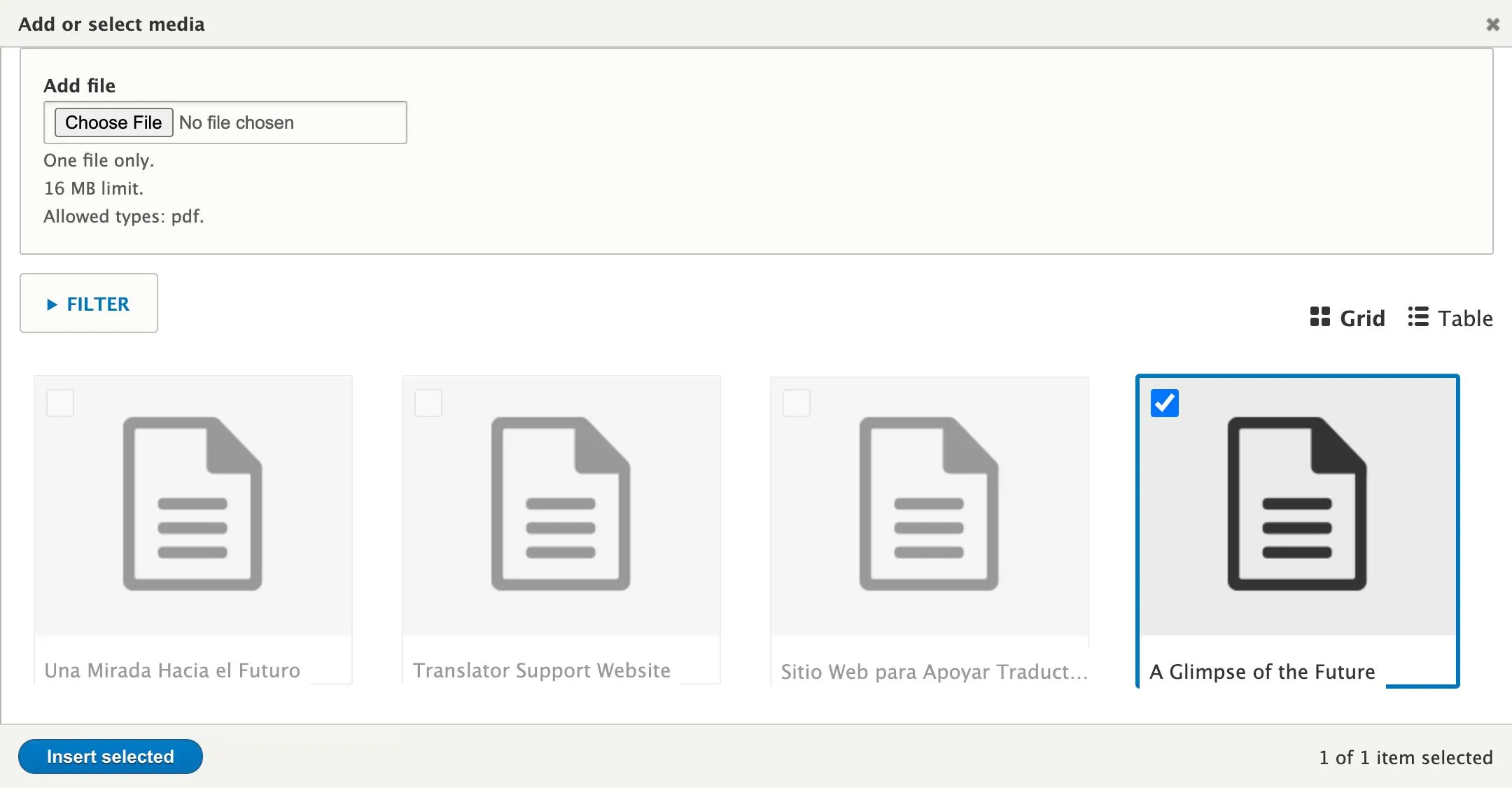
PDF selected
f) The PDF now appears in both the layout panel on the left and in the sidebar on the right.
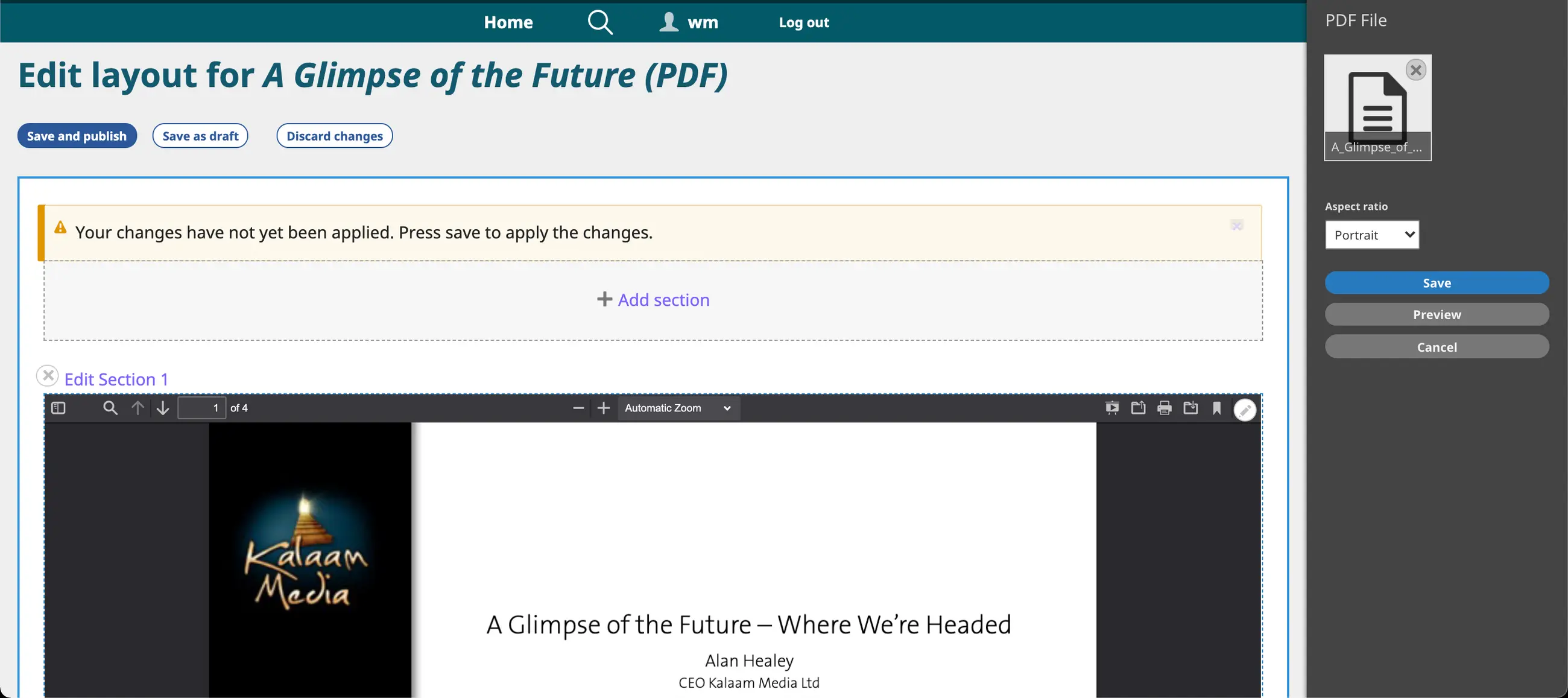
Selected images in layout panel and sidebar
8. Click on the drop-down list Aspect ratio and select the desired option (portrait, landscape, square, 4:3, 3:2, 16:9).
9. Click on the Save button at the bottom of the sidebar.
10. Click on the Save button on the Layout Editor screen.
11. Your work appears on a preview of the page.
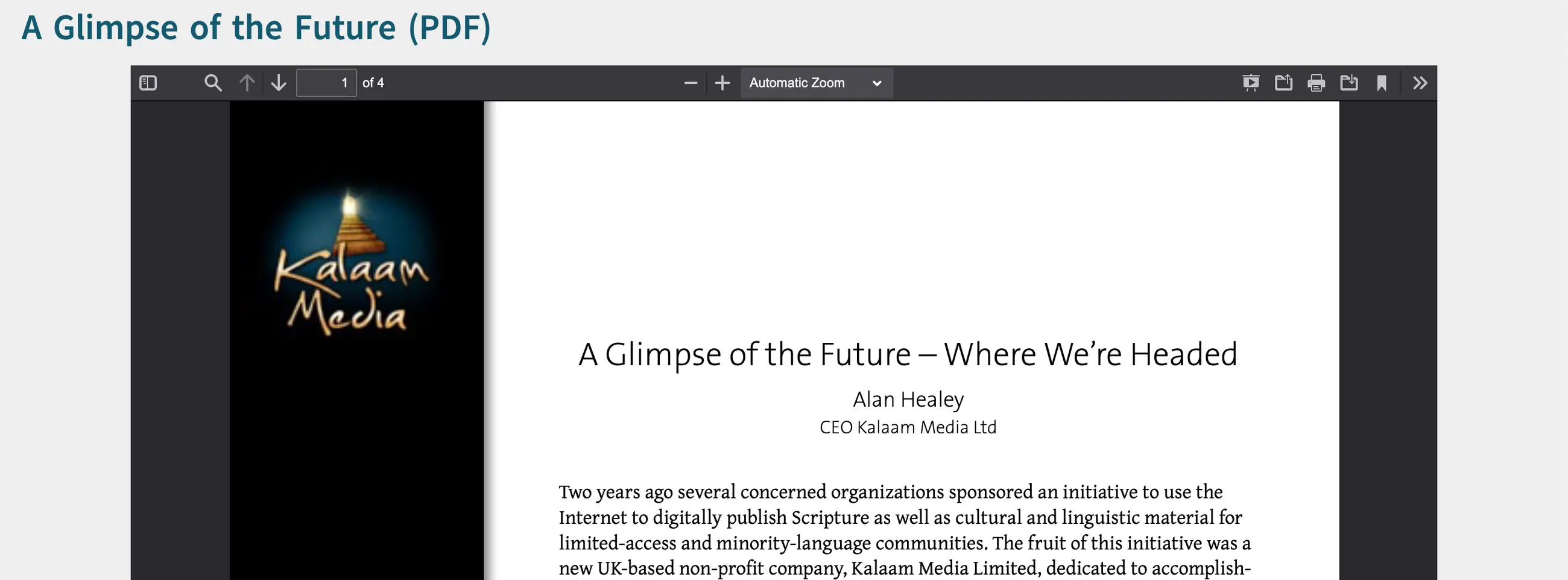
PDF on a website page - portrait orientation
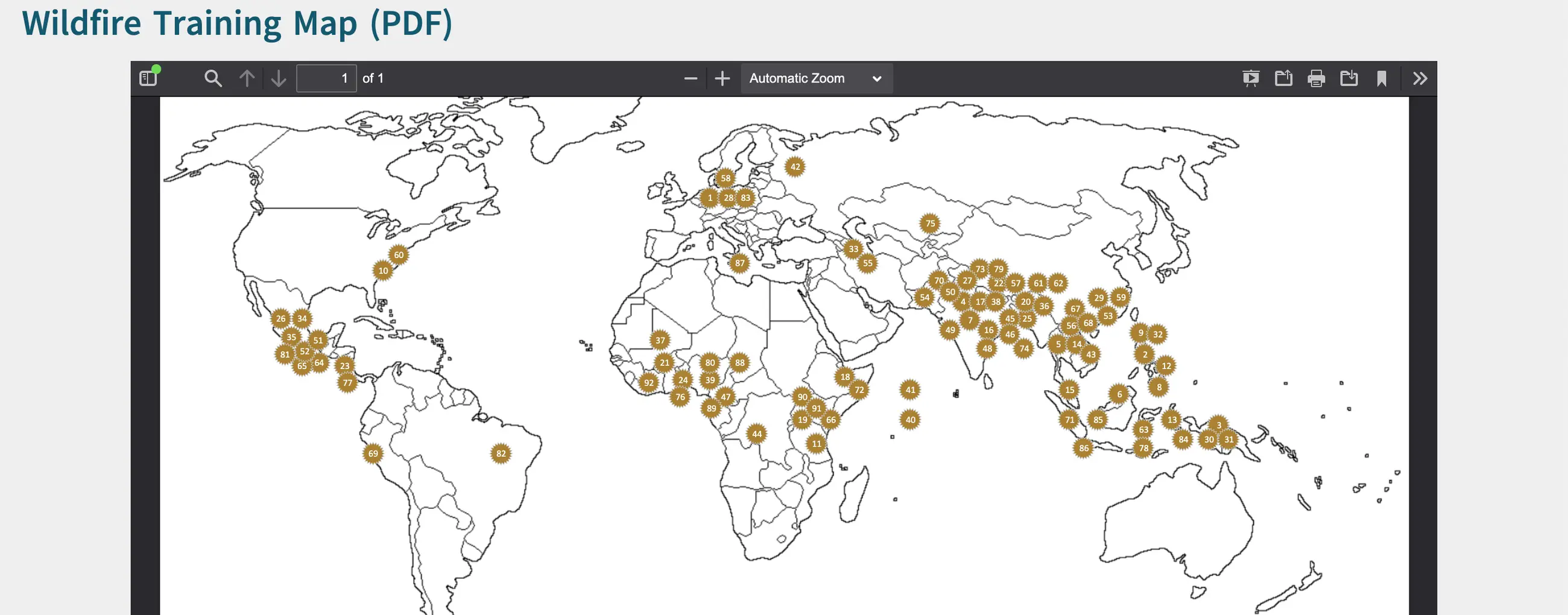
PDF on a website page - landscape orientation
12. PDF viewer frame controls:
a) Search for key words with the magnifying glass at the top left.
b) Use the up and down arrows at the upper left to navigate forward and back through the document.
c) Use + and – and the Zoom drop-down list at the top middle to zoom in and out.
d) Icons at the top right allow you to download or print the document.
C. Playlist (Scripture)
1. In earlier chapters, you learned how to create a playlist of either audio or video files, but you could not mix them.
2. You may create a playlist with mixed media items by utilizing the Scripture reference feature.
3. You must first assign Scripture references to all the media items you plan to include on the playlist.
a) Scripture references may only be assigned to audio and video items.
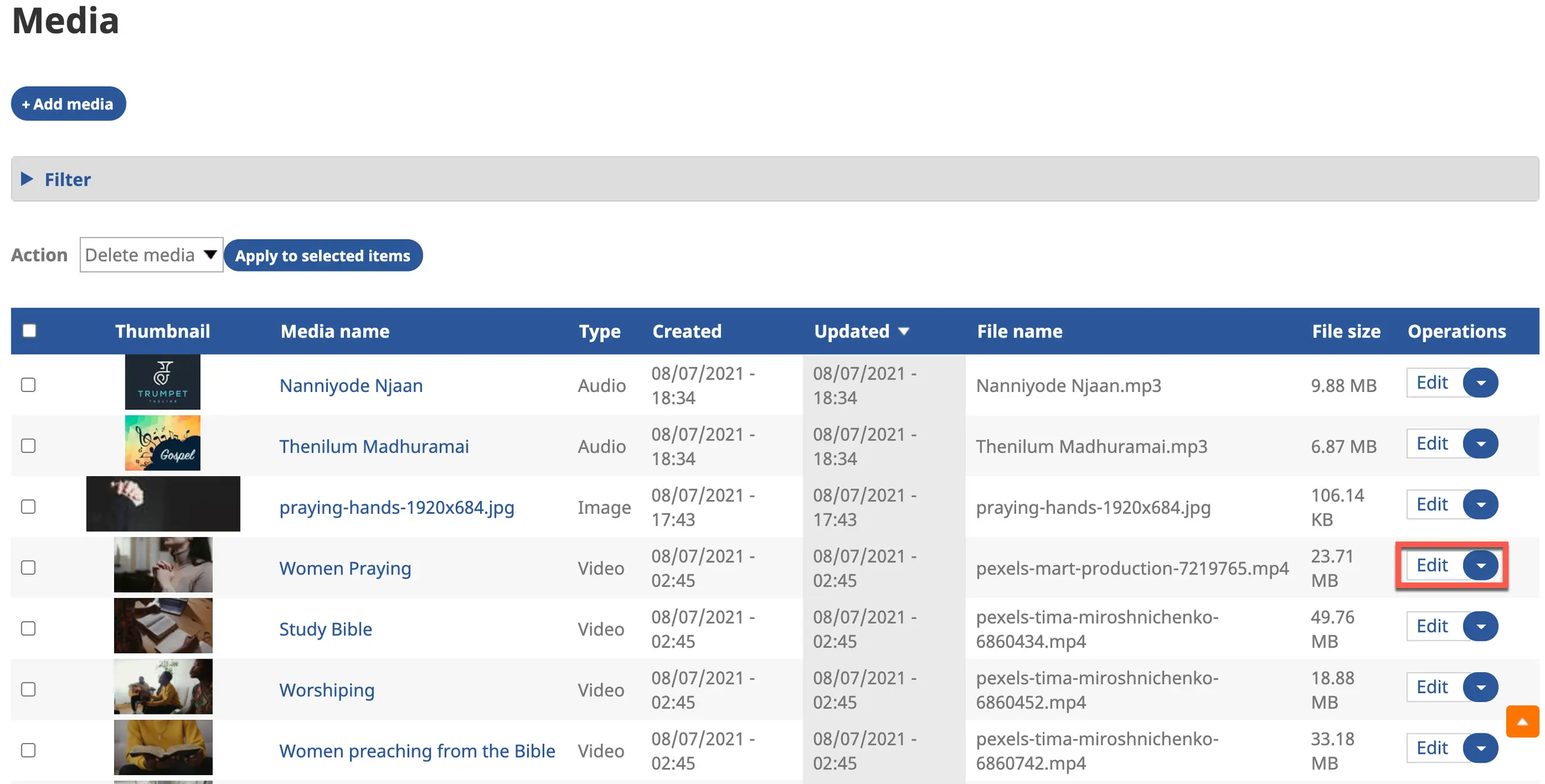
b) In the Media Library (list mode), click on Edit for the item you wish to modify.
Edit a media item
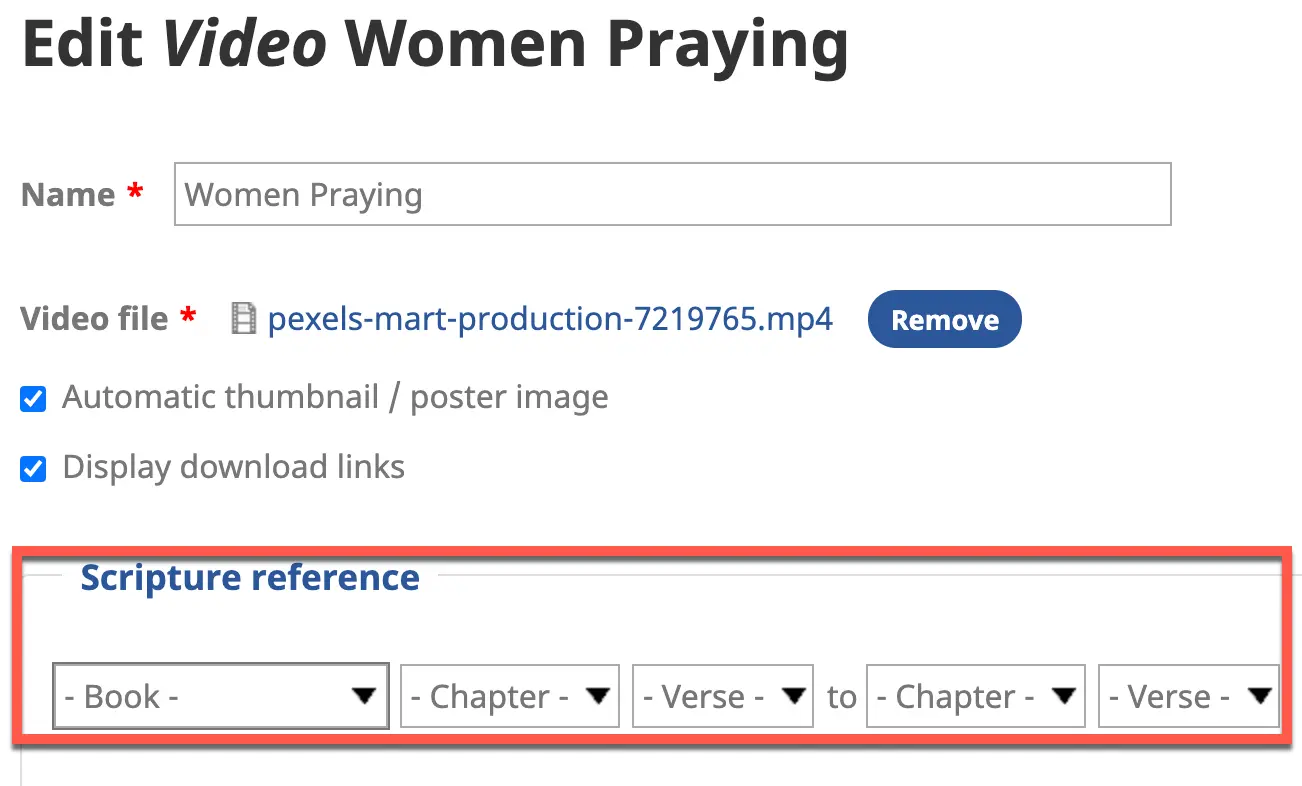
c) On the Edit screen, use the drop-down lists to enter a Scripture reference.
Add Scripture references
1) As a minimum, select a book of the Bible.
2) You may also select the beginning chapter and verse and ending chapter and verse.
d) Click on the Save button at the bottom left of the screen.
4. Select the Content block to which you want to add a Scripture Playlist by clicking on a + Add content link.
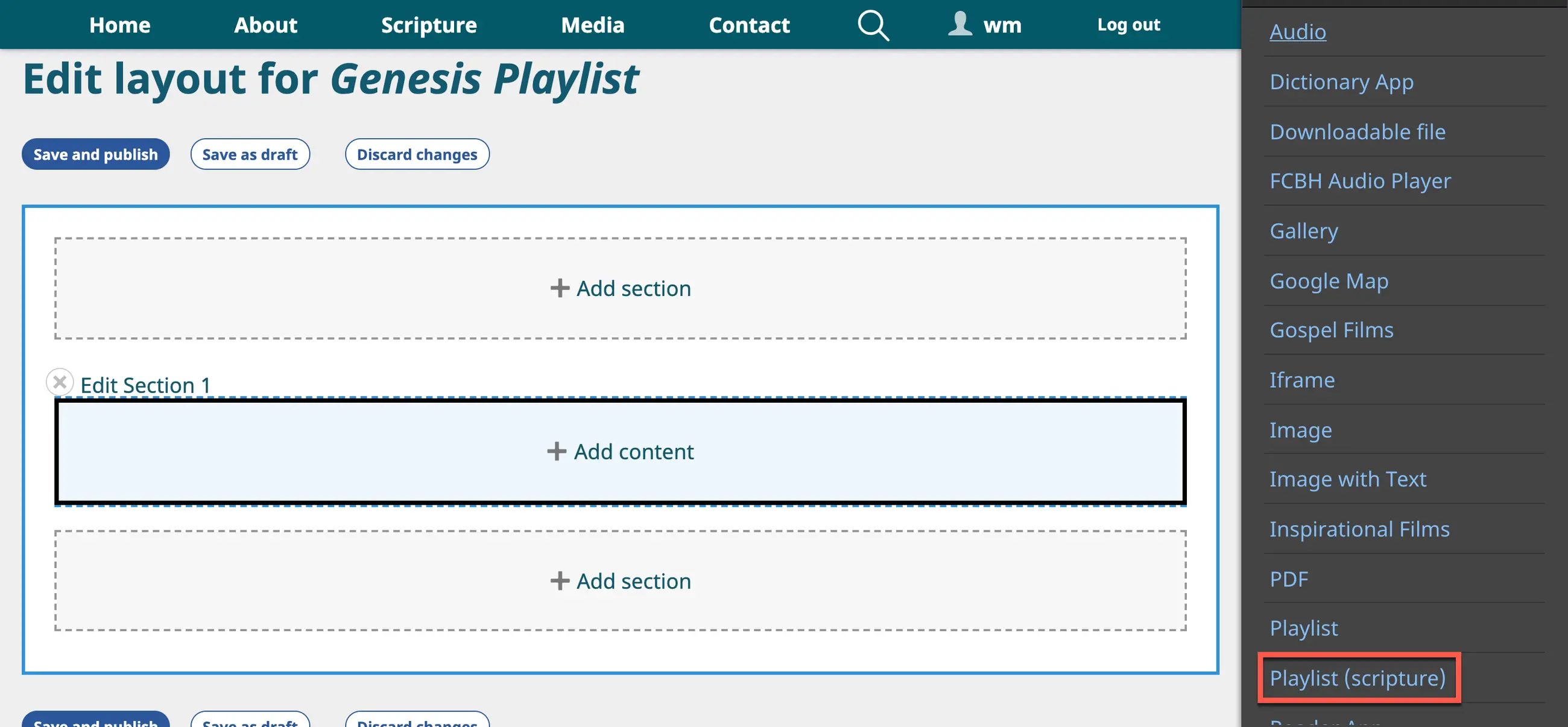
5. A sidebar opens, displaying the types of block content.
Content block sidebar
6. Click on the option Playlist (scripture).
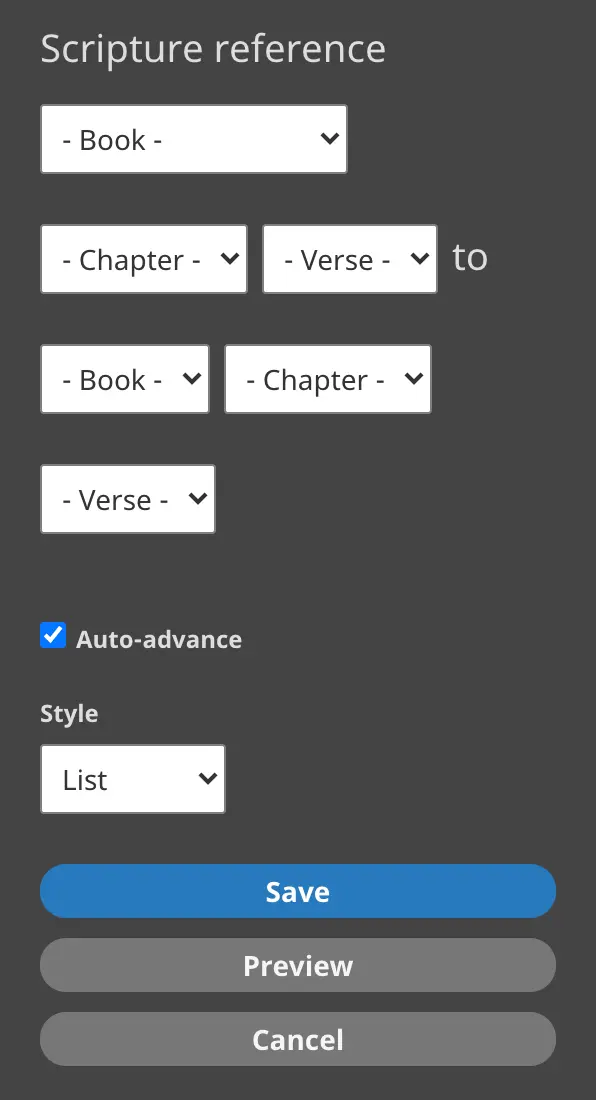
7. A new sidebar opens with features to specify the Scripture references for the playlist.
Playlist (scripture) sidebar
8. Use the drop-down lists to enter the desired Scripture references for the playlist.
a) As a minimum, select one Bible book.
b) You may also select the beginning chapter and verse and ending chapter and verse, and you may begin in one book and end in a later book.
9. The auto-advance function is checked by default. Uncheck it if you do not want the player to auto-advance from one item to the next.
10. Choose a display style from the drop-down list.
a) List – Places list of items at the right side of the viewer frame
b) Grid – Places list of items below the viewer frame
c) Compact – Use only for playlists with no video items
11. Click on the Save button at the bottom of the sidebar.
12. Click on the Save button on the Layout Editor screen.
13. Your work appears on a preview of the page.
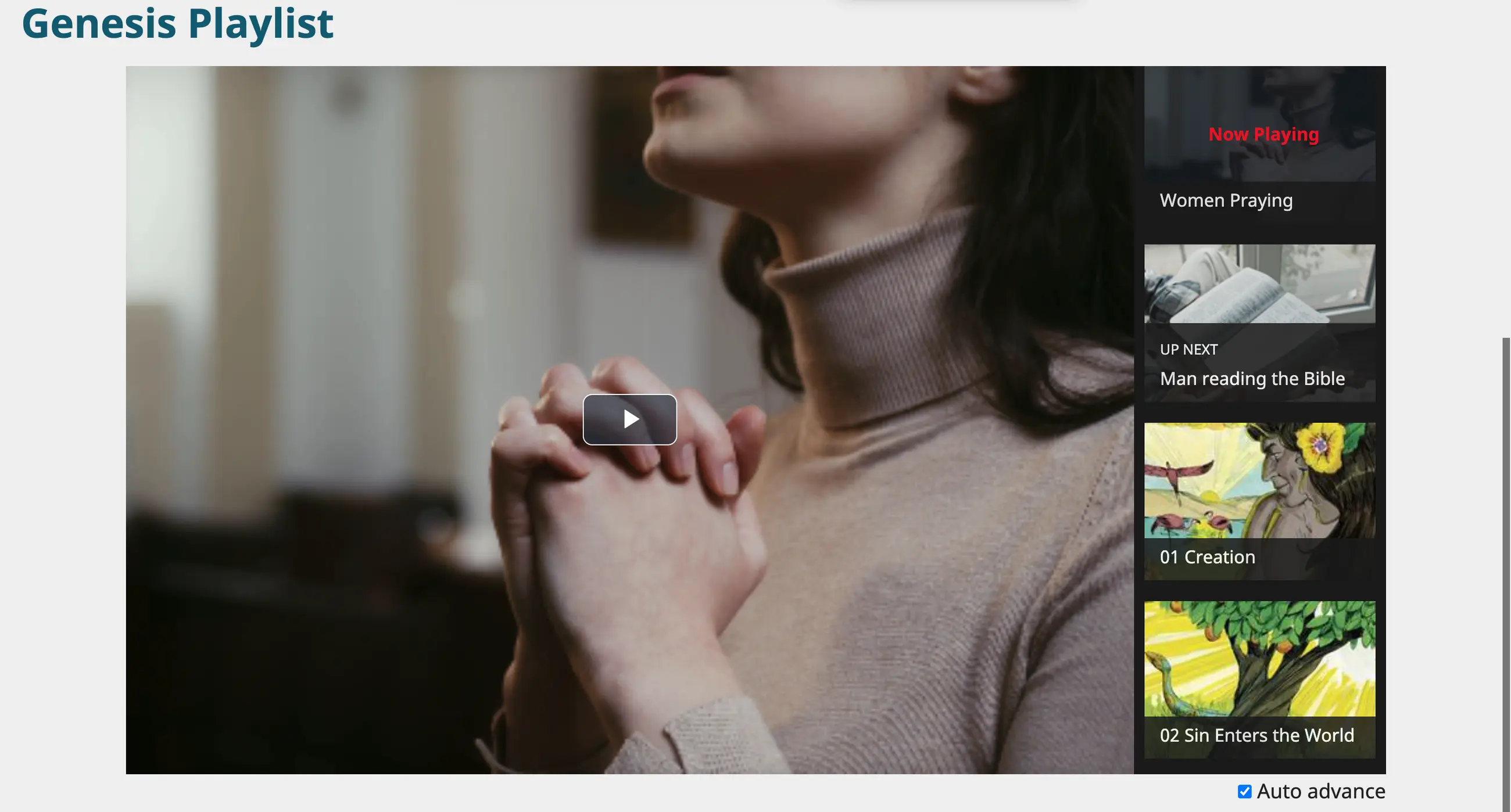
Scripture playlist (list mode) on a website page
D. Downloads
1. While many of the content blocks already described include a feature to download their content, you may want to create a Downloads list on a page to offer your website visitors an easy way to find especially useful files like documents, applications, or programs.
2. Select the Content block to which you want to add a Downloads list by clicking on a + Add content link.
3. A sidebar opens, displaying the types of block content.
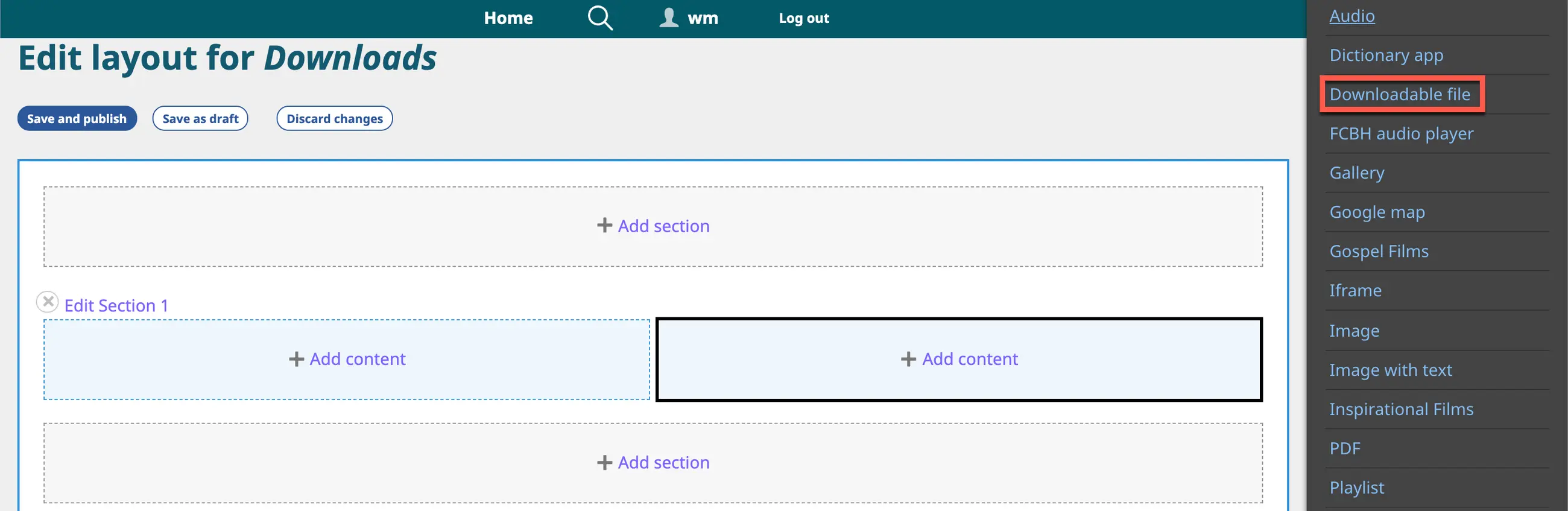
Content block sidebar
4. Click on the option Downloadable file.
5. A new sidebar opens with features to select files for the list.
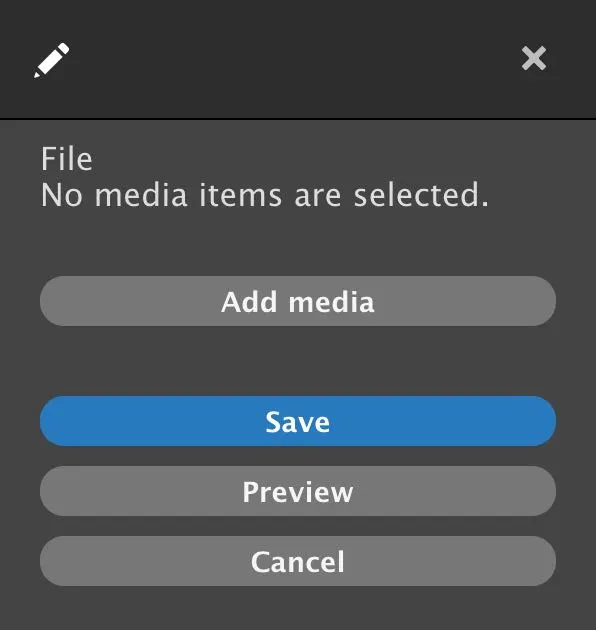
Downloadable file sidebar
6. Click on the Add media button.
a) The Add or select media working box opens in the default Document mode.
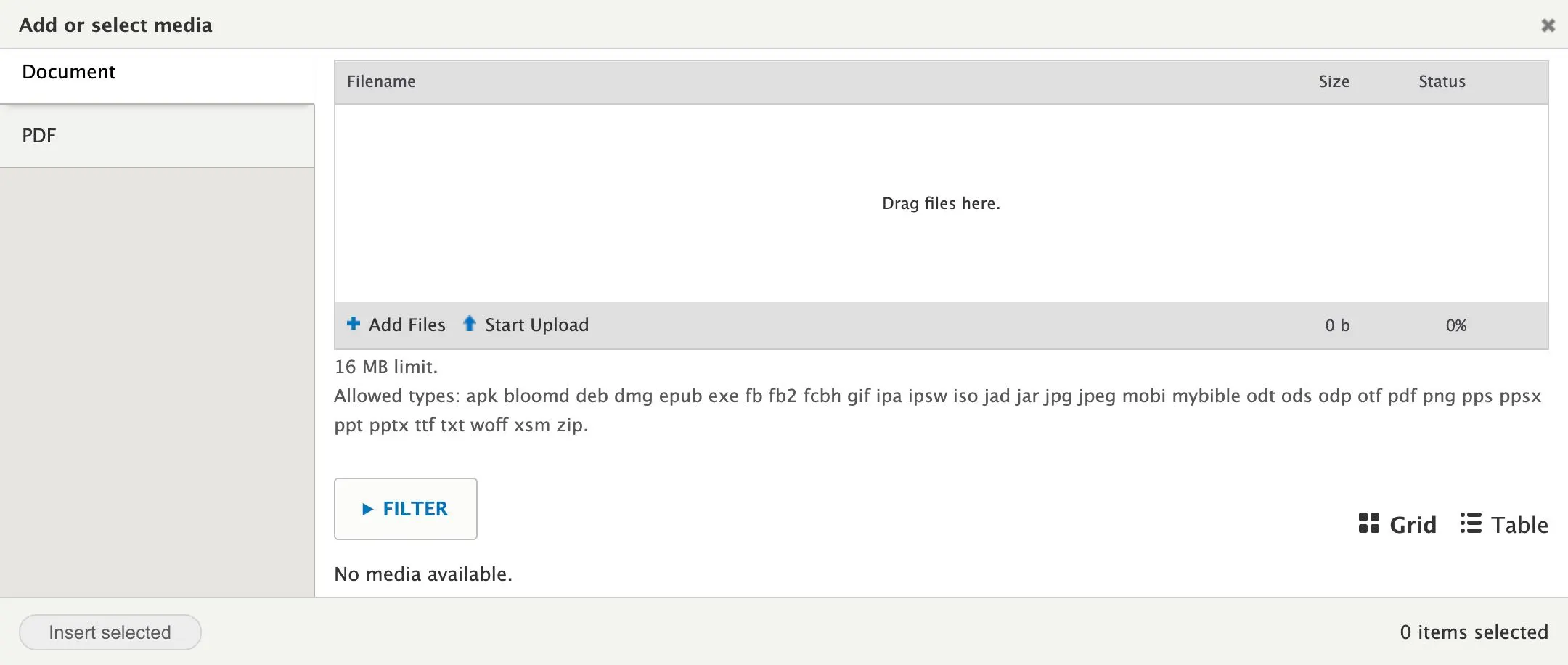
Add or select media working box - Document mode
b) You may use the upper section of the working box to select files from your computer.
c) If you have already uploaded relevant document files to your website, they will appear in the lower section of the working box.
d) Click on PDF at the upper left to change to PDF mode.
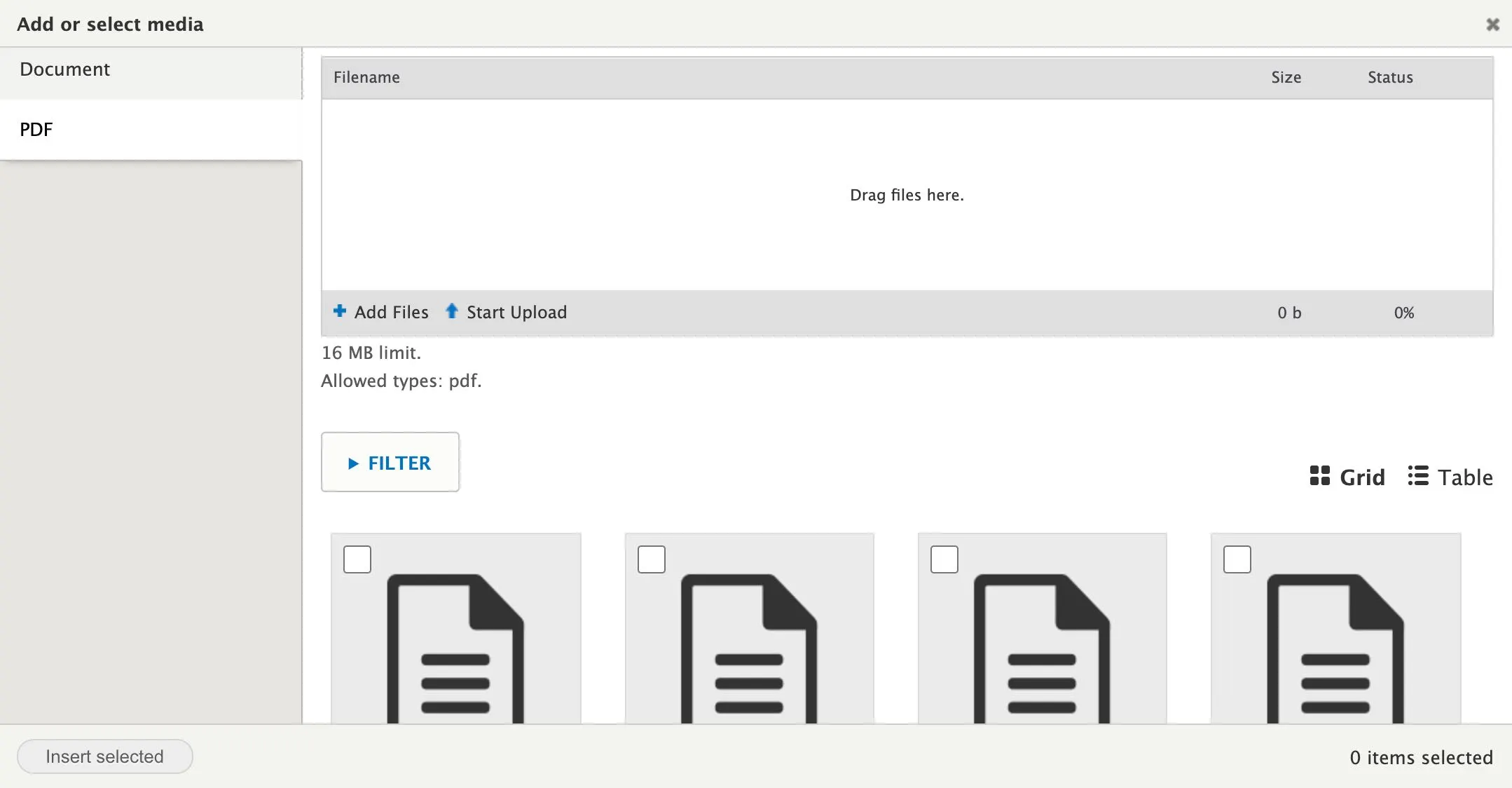
Add or select media working box - PDF mode
e) Again, you may use the upper section of the working box to select PDF files from your computer.
f) If you have already uploaded PDF files to your website, they will appear in the lower section of the working box.
g) Select files for the downloads list by clicking on the square in the upper left corner of the thumbnails.
h) Click on the Insert selected button at bottom left of the working box.
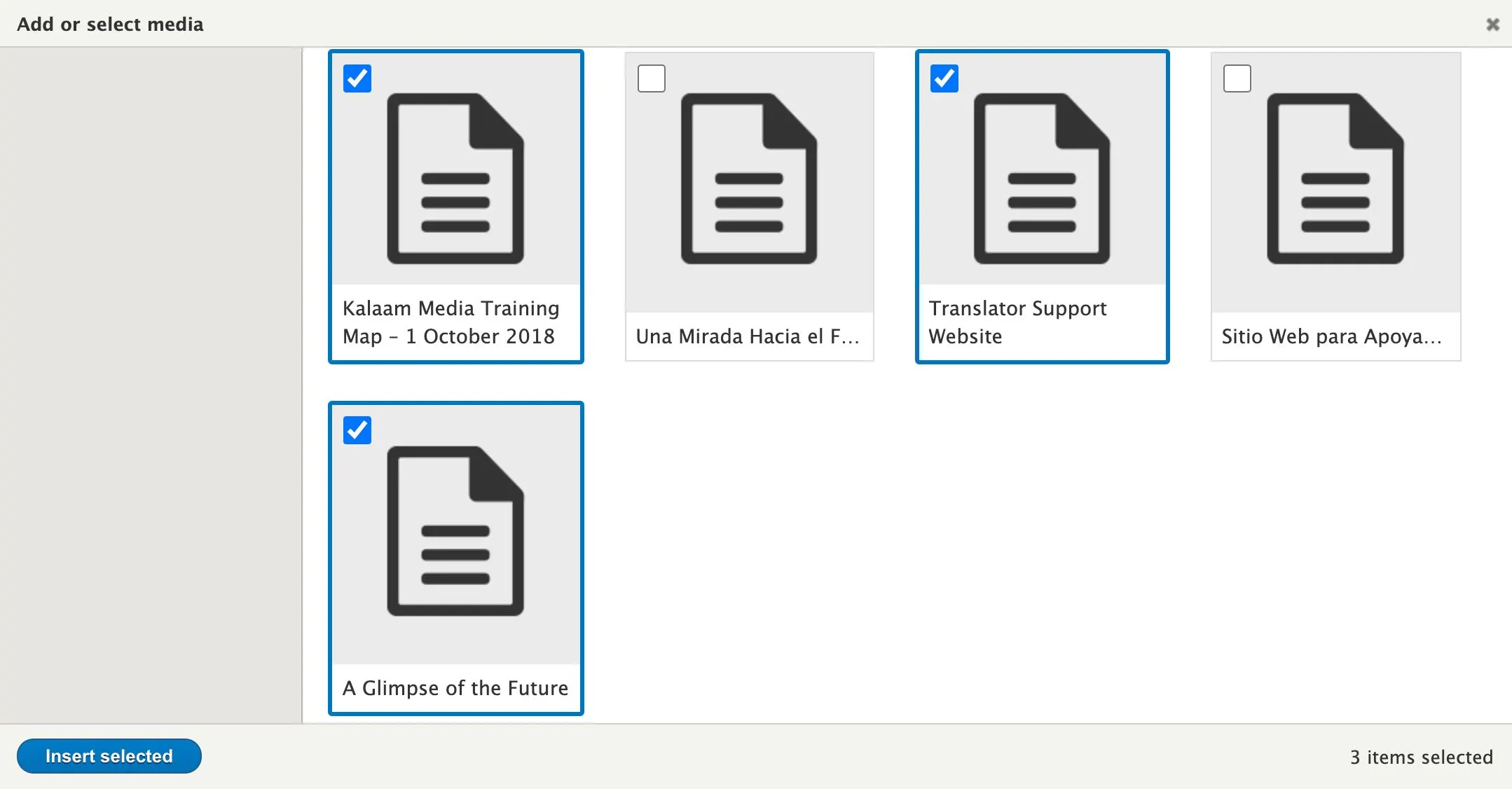
Files selected
i) The file list now appears in both the layout panel on the left and in the sidebar on the right.
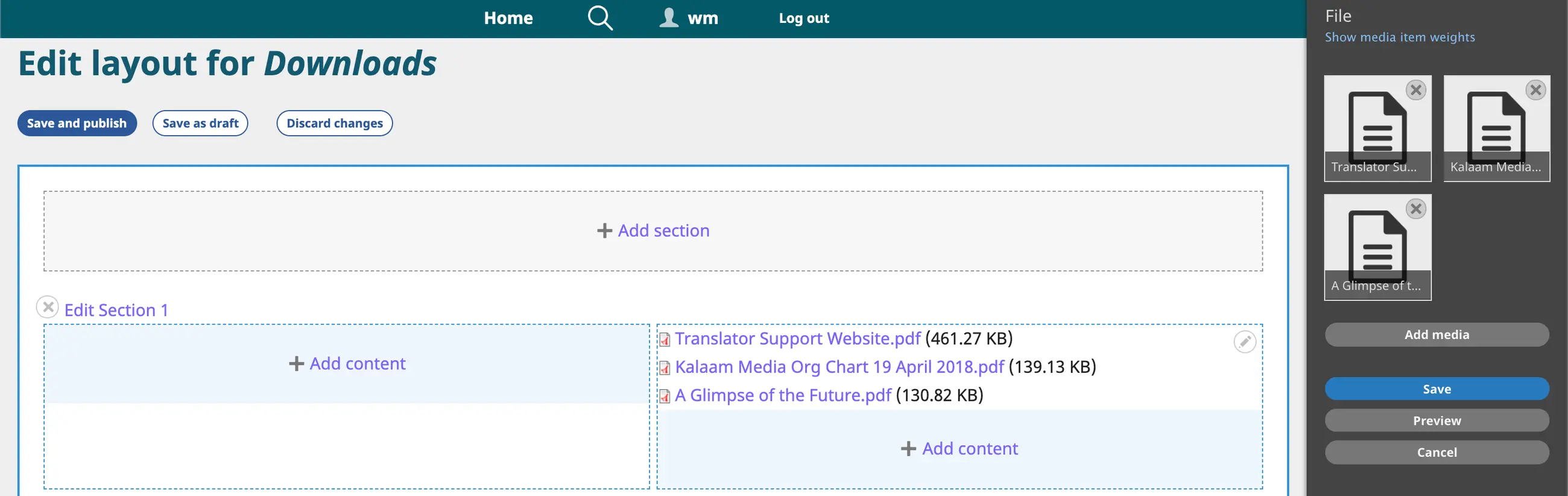
Downloadable files in layout panel and sidebar
7. Click on the Save button at the bottom of the sidebar.
8. We recommend including a Text content block on the page with brief instructions for the Downloads list.
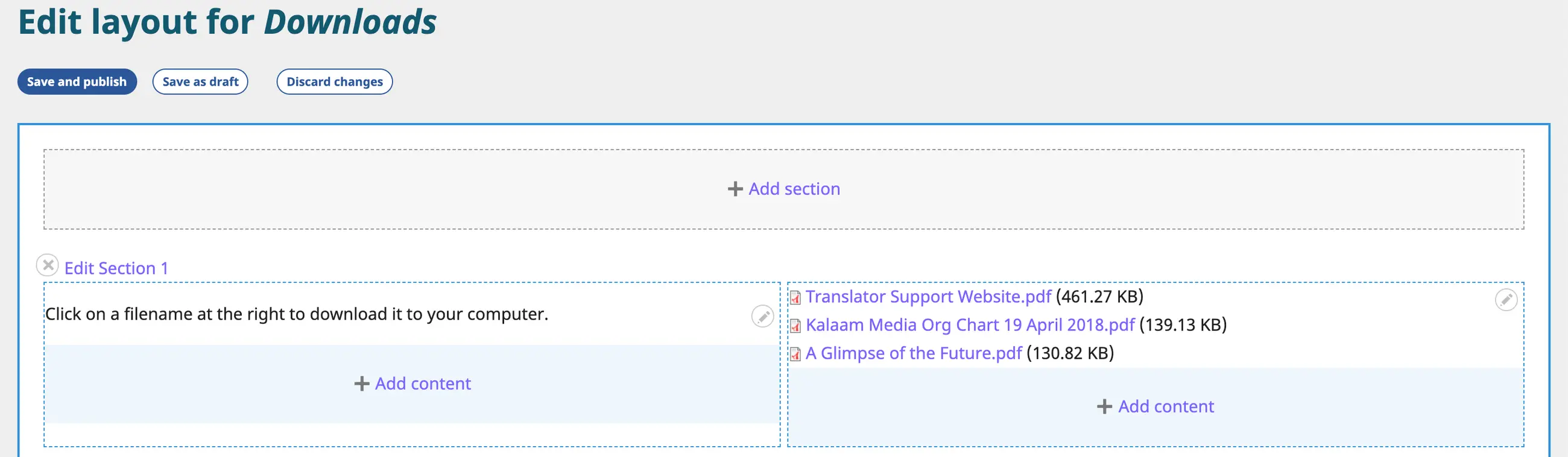
Add text instructions about Downloads list
9. Click on the Save button on the Layout Editor screen.
10. Your work appears on a preview of the page.

Downloads list on a website page
E. Iframe
1. Your Digital Publishing Manager or workshop facilitator will need to help you prepare your website for using an iframe.
2. To publish a YouTube playlist in an iframe, see Section F.
3. Select the Content block to which you want to add an iframe by clicking on a + Add content link.
4. A sidebar opens, displaying the types of block content.
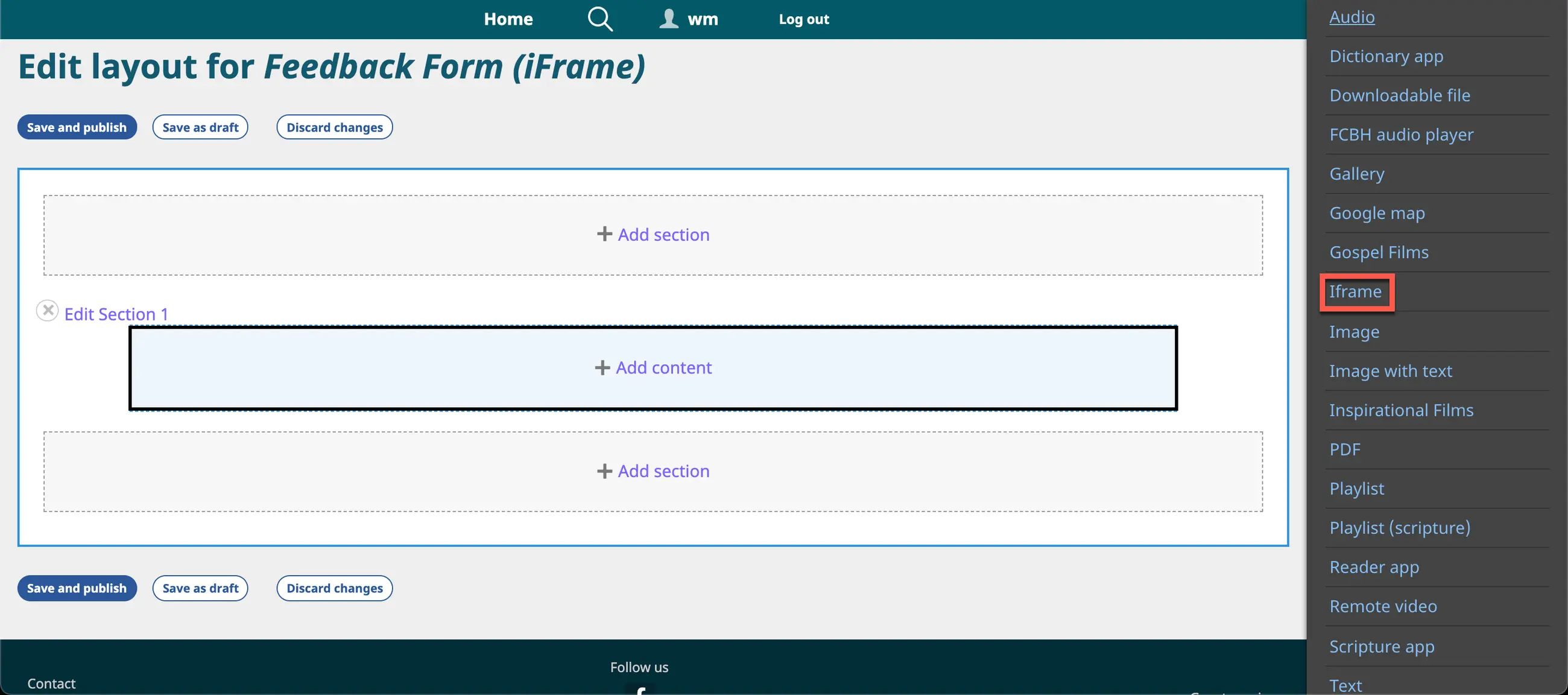
Content block sidebar
5. Click on the option Iframe.
6. A new sidebar opens with features to specify the desired iframe.
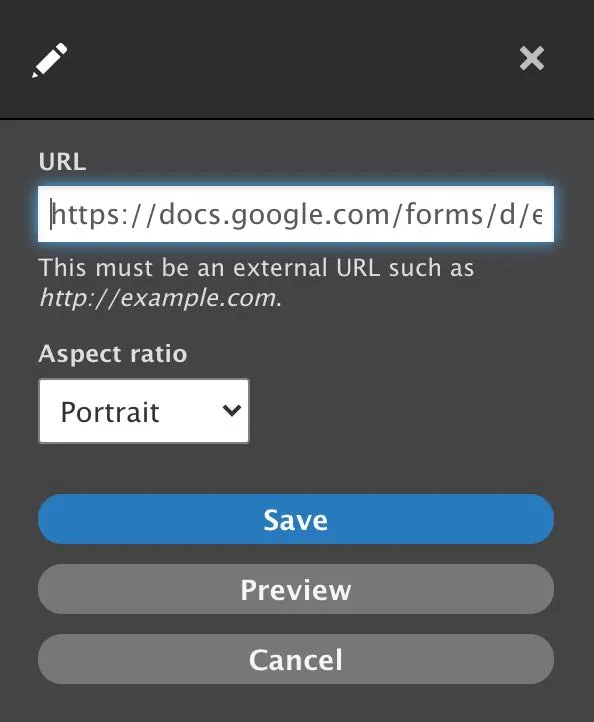
Iframe sidebar
7. In the space titled URL, enter the desired URL.
a) The URL will not be accepted if your Digital Publishing Manager has not previously configured the website.
8. Click on the drop-down list Aspect ratio and select the desired option (portrait, landscape, square, 4:3, 3:2, 16:9).
9. Click on the Save button at the bottom of the sidebar.
10. The sidebar disappears, and the iframe is displayed on the layout editor screen.
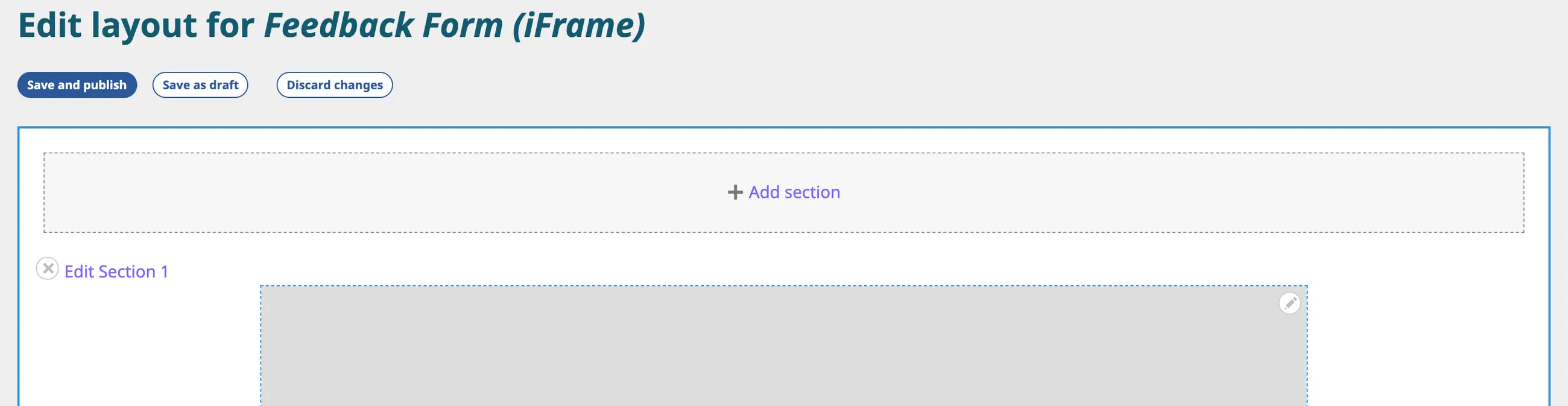
Iframe on layout editor screen
11. Click on the Save button on the Layout Editor screen.
12. Your work appears on a preview of the page.
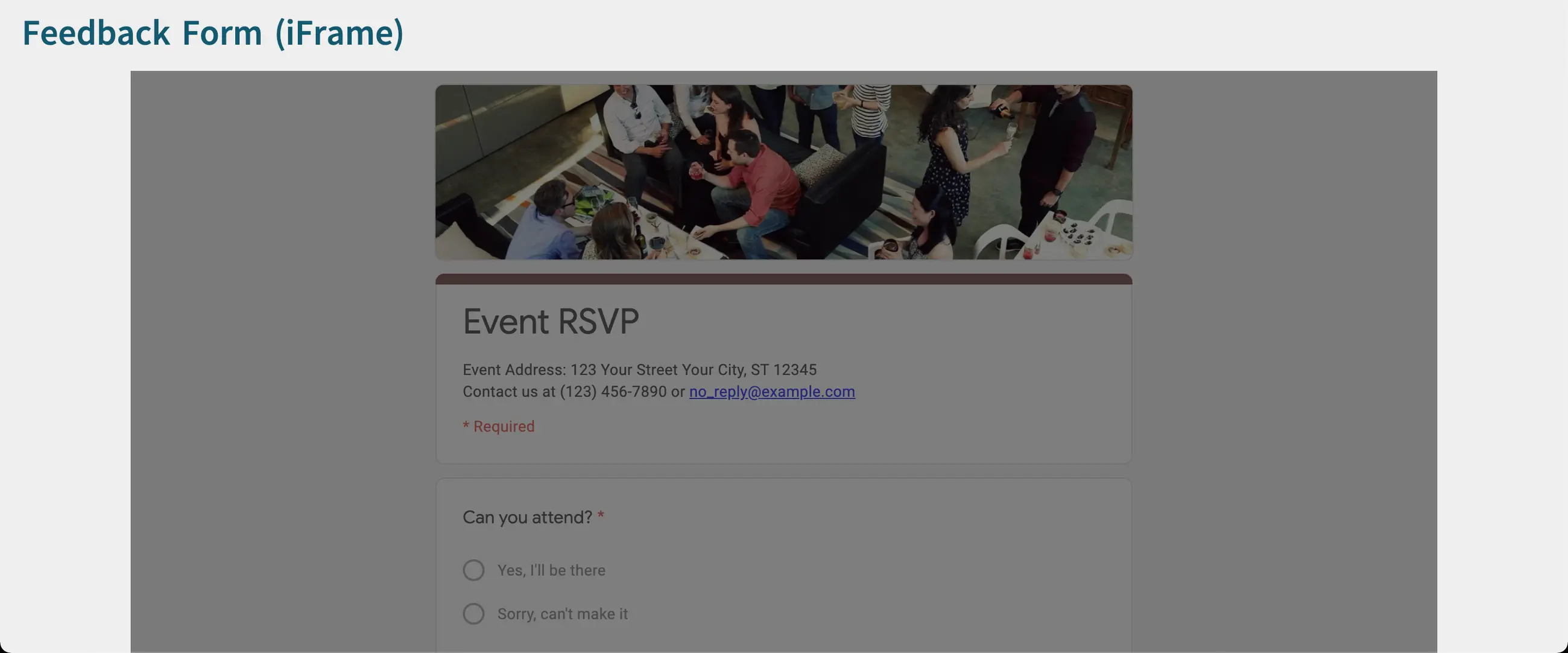
Iframe on a website page
F. Verse of the Day
1. A Verse of the Day content block allows you to configure a section of a website page to show website visitors a Bible verse
a) The language of the verse (and version of the Bible) changes for each Navigation Language.
b) The verse automatically changes every day.
2. Select the Content block to which you want to add Verse of the Day by clicking on a + Add content link.
3. A sidebar opens, displaying the types of block content.
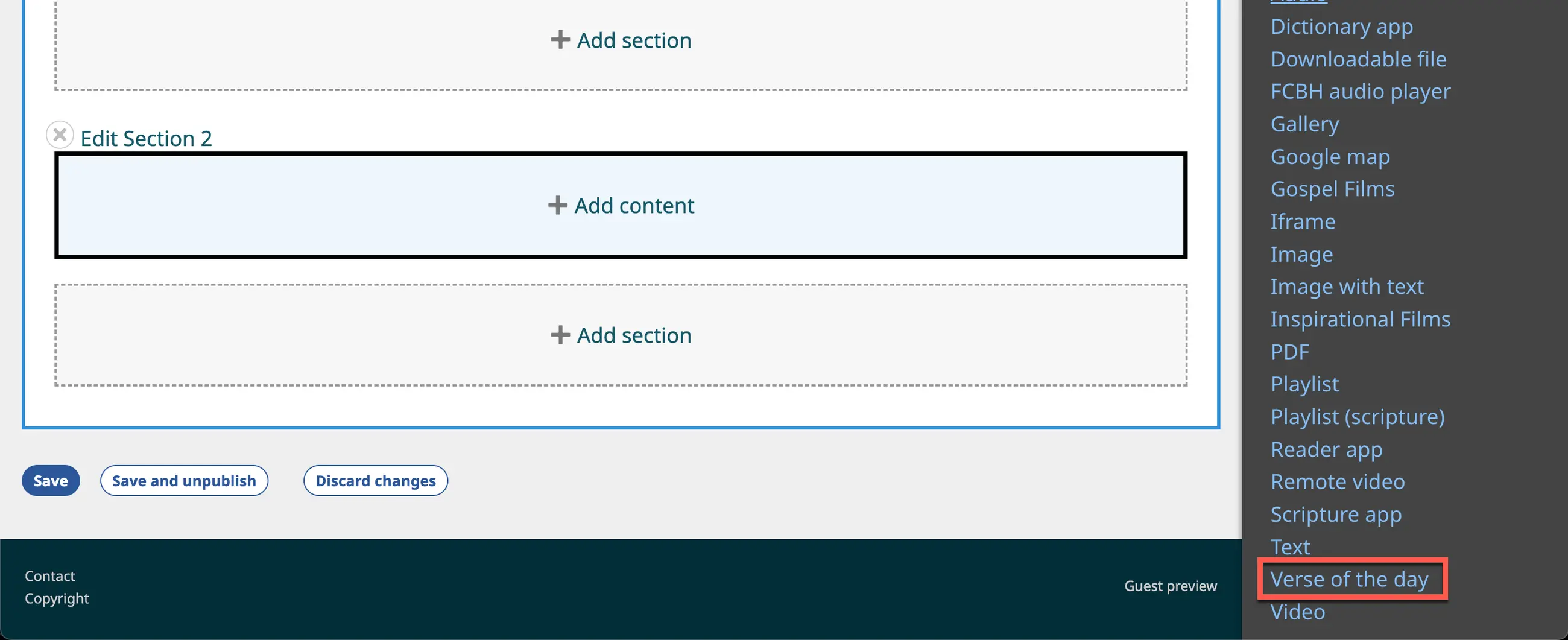
Content block sidebar
4. Click on the option Verse of the day.
5. A new sidebar opens with features to configure the Verse of the Day block.
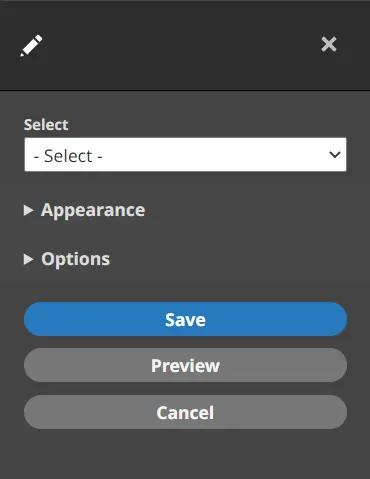
Verse of the Day sidebar
6. Click on the drop-down list titled - Select - and choose a version of the Bible to display. You have three options for what language to display:
a) Navigation language: Choose from a version of one of the navigation languages of the website.
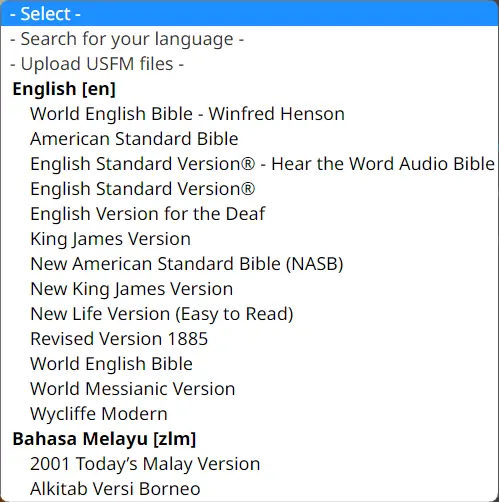
Select Bible version
b) Search for another language: Select Search for your language from the drop-down list. In the next box, start typing the language name or Ethnologue code. A list of matches will appear, from which you may choose.
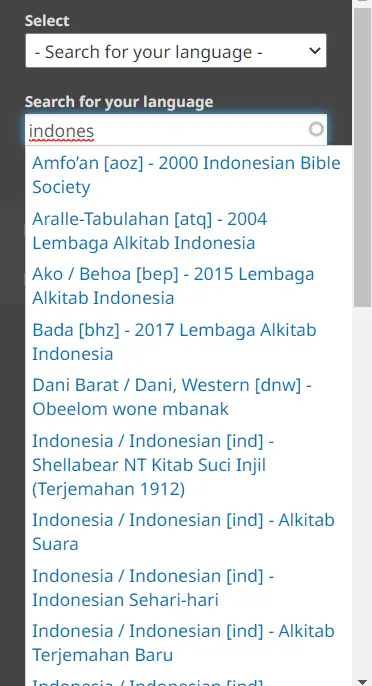
Search for language
c) Upload USFM file(s): Select Upload USFM files from the drop-down list. In the next box, click the Choose files button and find the files for the consultant-checked books you want to use as the source for the Verse of the Day feature. You may choose .usfm, .sfm or .zip file types.
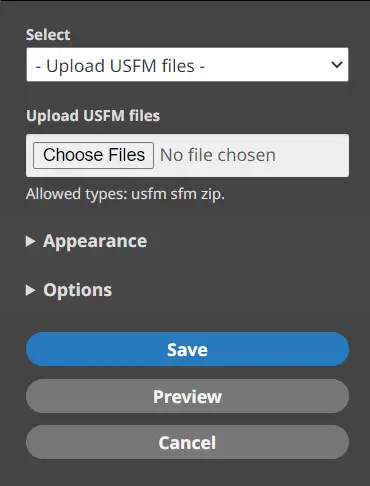
Upload USFM files working box
7. Click on the title Appearance to open that section of the sidebar.
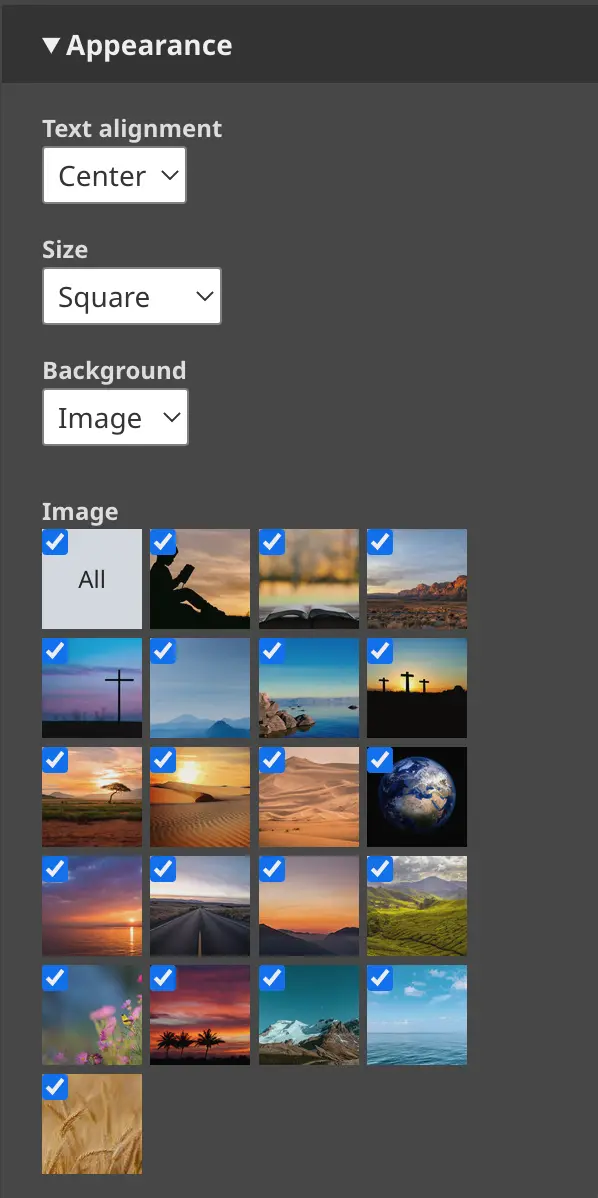
Fig. 293. Verse of the Day sidebar – Appearance
a) Text alignment: Center, left, or right
b) Size: Square, portrait, or fit to text
c) Background
(1) Image – Select all or some of the preinstalled images below. (You are not able to use your own images for this content block.)
(2) Color – Select from pre-chosen colors compatible with your color scheme
(3) Border – Select from preinstalled border patterns
(4) None
8. Click on the title Options to open that section of the sidebar.
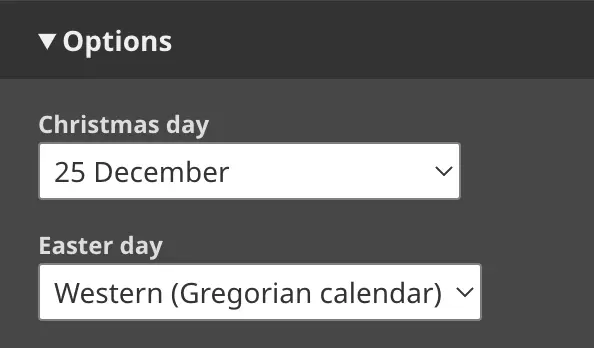
Fig. 294. Verse of the Day sidebar – Options
a) Christmas day: Choose the appropriate day for your setting, or None.
b) Easter day: Choose which calendar to use, or None.
9. Click on the Save button at the bottom of the sidebar.
10. Click on the Save button on the Layout Editor screen.
11. Your work appears on a preview of the page.