
Click on a section title to jump down the web-page:
A. Introduction
D. First log-in – change password
A. Introduction
1. You may have been given a blank website on which to build your Wildfire website.
a) The template will have no website content at all.
b) You will need to create every page and all content for the website.
B. Go to the website
1. Open your Internet browser (Wildfire works best with Chrome or Firefox).
2. If the website has not been launched, enter the provisional domain name provided by your Digital Publishing Manager.
3. If the public domain name has been assigned to the website, enter the public domain name.
C. Log in to the website
1. Click on the link to log in.
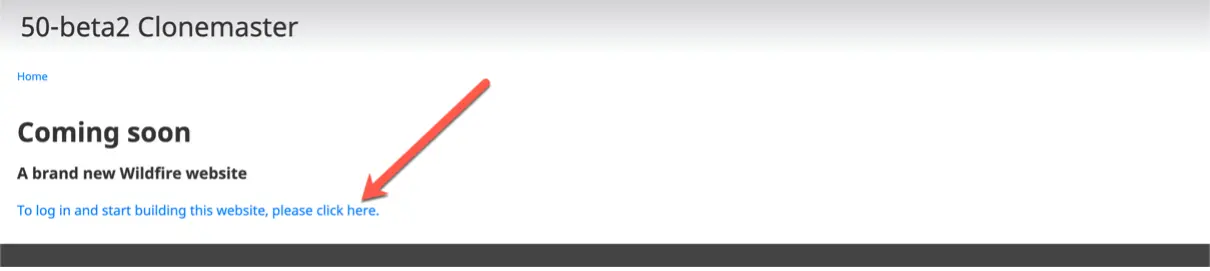
5. Log in to the website
2. The Log in screen opens.
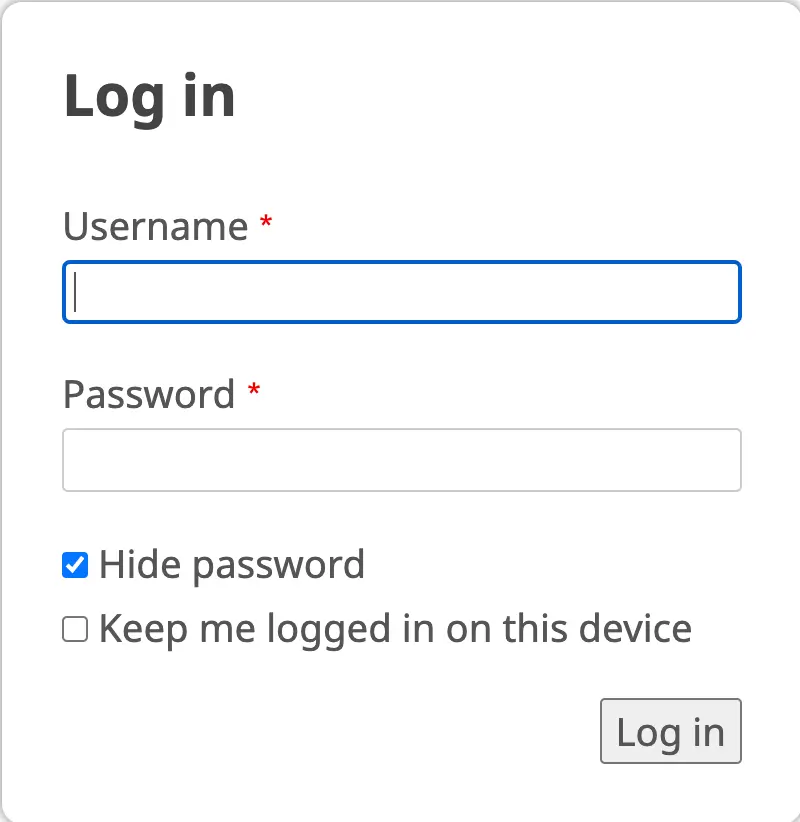
6. Log-in screen
b) Enter the Username and Password provided by your Digital Publishing Manager.
2. The next screen to appear will vary, depending on the status of the website.
a) If this is your first time logging in, go on to Section D.
b) If you are continuing to work on an existing website, go to a later chapter, as appropriate. See the Table of Contents (click here) for assistance in selecting the chapter.
D. First log-in – change password
1. When you log in to your new Wildfire website for the first time, a Welcome screen will appear.
2. Click on the link <username> at the upper right.
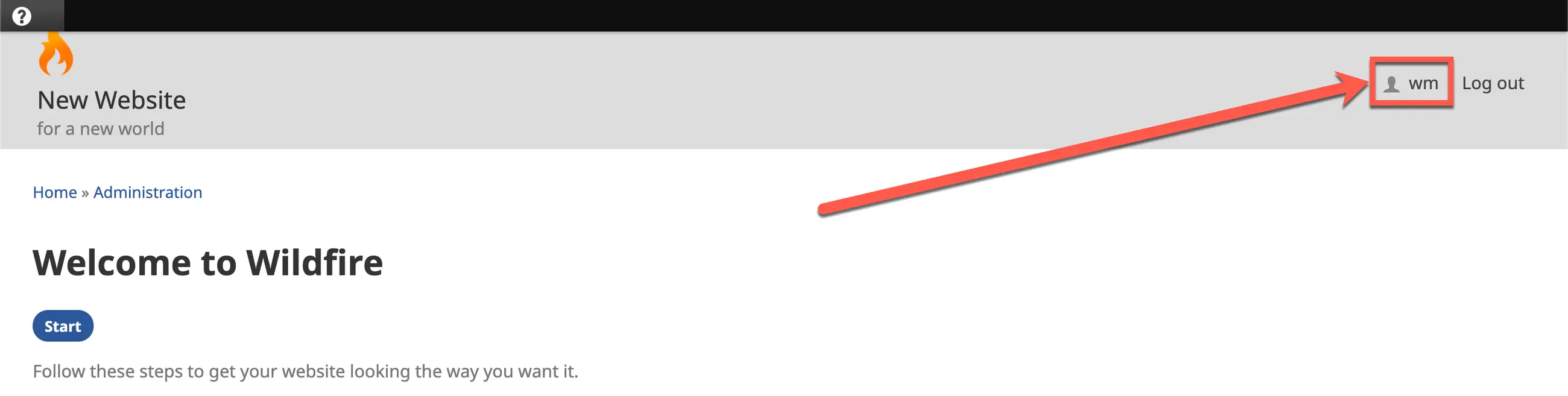
7. Welcome to Wildfire screen and account link
3. The Account edit screen opens.
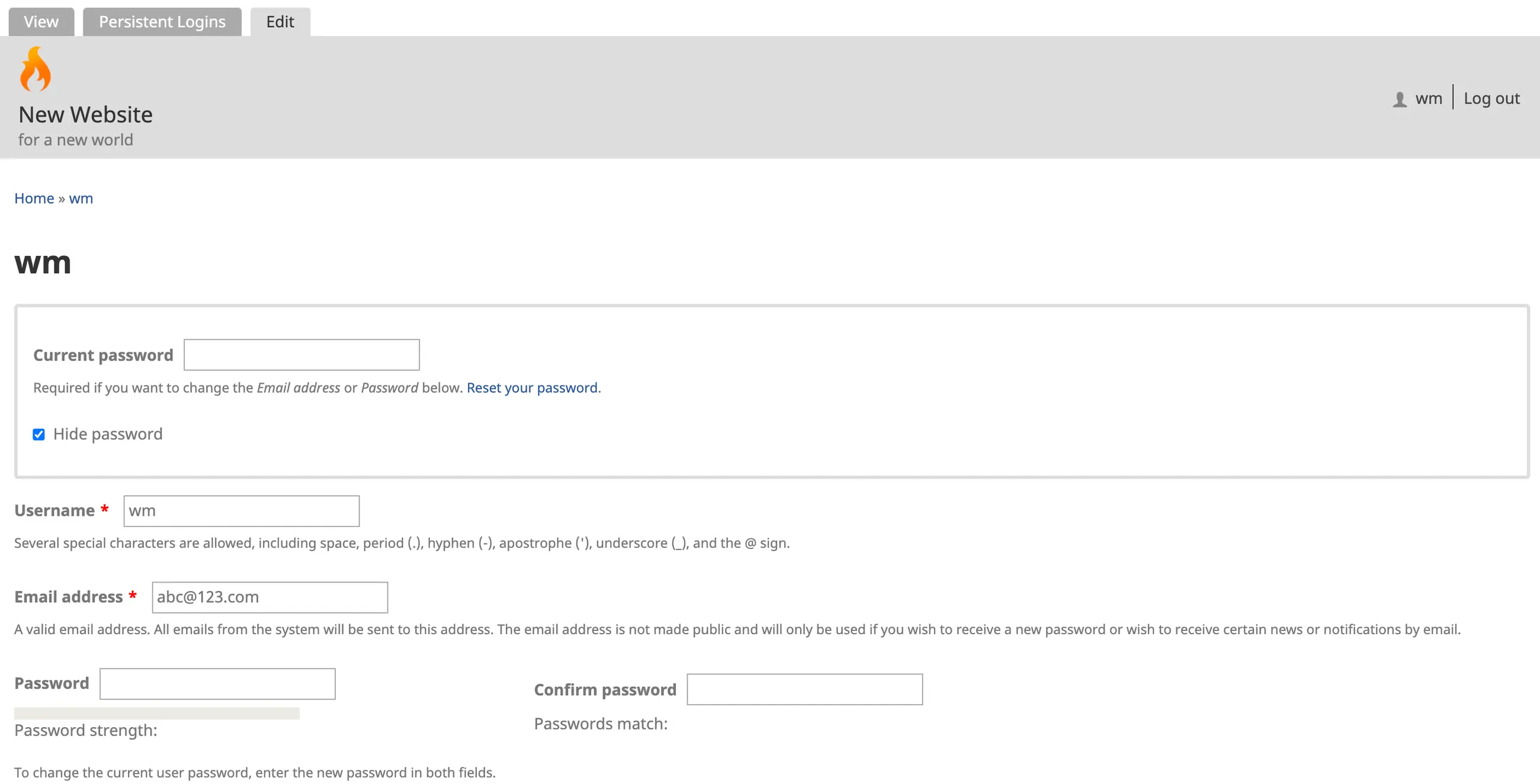
8. Account edit screen
a) Enter your Current (temporary) password at the top.
b) Change your Username if desired.
c) Verify or update your E-mail address.
d) Enter a new password of at least 12 characters.
e) Confirm (re-enter) the new password.
f) Verify or update your real name.
g) Click on the Save button at the bottom of the screen.
4. Continue to Chapter 3: Initial Setup Guide.