
Click on a section title to jump down the web-page:
A. Introduction
1. The rich-text editor box appears in the Content block sidebar for Text, Image with Text, and Image (for image captions, with limited functions).
2. The rich-text editor has many features for formatting text and inserting special features. These are accessed through the icons in the top bar.

116. Icons for general editing functions
a) The Paste icon includes a drop-down list of options.
1) Paste (icon default) – pastes with formatting from source included (if any)
Note that clicking on this icon link does not work. Use the keystroke sequence Ctrl-V to paste text with formatting.
2) Paste as plain text – pastes the text on the clipboard without formatting
Note that clicking on this icon link does not work. Use the keystroke sequence Ctrl-Shift-V to paste text without formatting.
3) Paste from Word – pastes the text on the clipboard with formatting from Microsoft Word. Use only if copying and pasting text from Word.
Note that clicking on this icon link does not work. Use the keystroke sequence Ctrl-Shift-V to paste text from Word.
C. Text-formatting functions
For all these functions, use the mouse cursor to select the text you wish to format.
1. Click on the drop-down list Normal to choose a font style.
117. Drop-down list for font style
2. Click on the drop-down list Size to choose a font size.
118. Drop-down list for font size
3. Click on these icons to make the text bold, italics, underline, or strikethrough.

119. Icons for text appearance
4. Click on these icons to make the text subscript or superscript.

120. Icons for subscript and superscript text
5. Click on this icon to remove all formatting from the selected text.

121. Icon for removing formatting
6. Click on these icons to indent the selected text as a block or to remove indenting.
122. Icons for indenting and removing indenting
7. Click on these icons to left-justify, center-justify, or right-justify the selected text.
123. Icons for text justification
8. Click on these icons to turn the selected text into a numbered or bulleted list.
124. Icons for creating lists
9. Click this icon to format the selected text as a quotation block.

125. Icon for quotation block
10. Click these icons to make the selected text read left-to-right or right-to-left.
D. Insert features
1. Horizontal line
a) Place your mouse cursor inside the editing box in the location at which you wish to insert a horizontal line (useful for separating areas on the web page).
b) Click on this icon.

127. Icon to insert horizontal line
2. Special character
a) Place your mouse cursor inside the editing box in the location at which you wish to insert a special character.
b) Click on this icon.

128. Icon to insert special character
c) A pop-up box displays a grid of special characters.
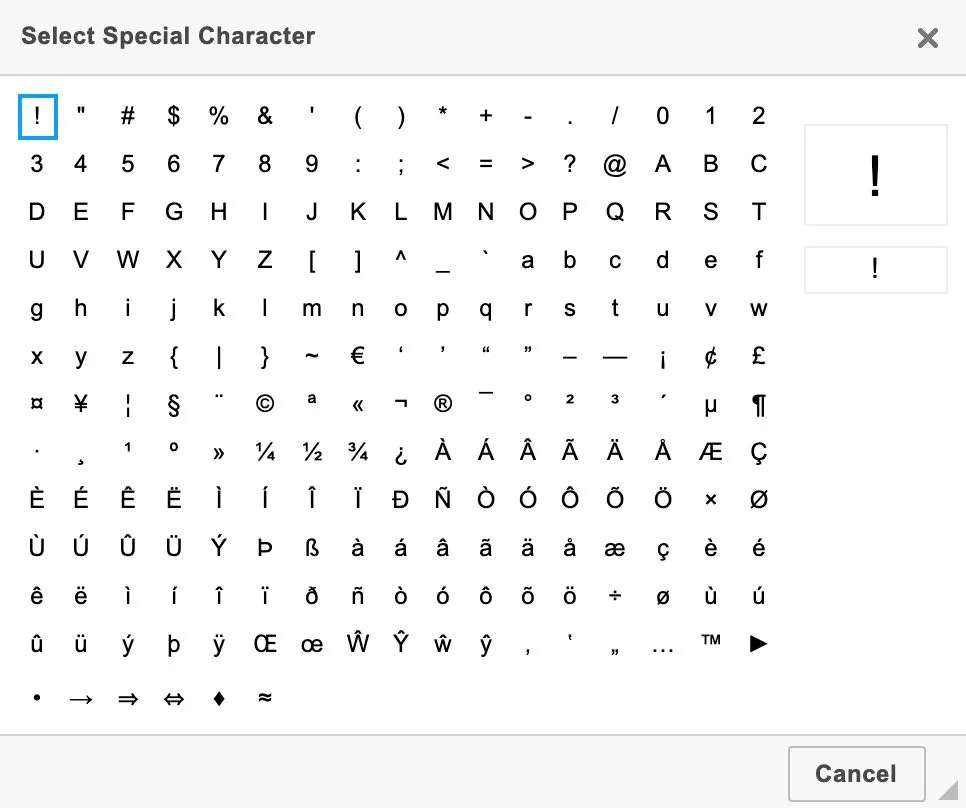
129. Special characters
d) Double-click on a character to insert it.
3. Anchor point
An anchor point is useful on a long website page. It is paired with an anchor link (next section) to jump to a different part of the page without scrolling.
a) Place your mouse cursor inside the editing box in the location at which you wish to insert an anchor point.
1) Do not select text or an image for this type of link.
b) Click on this icon.

130. Icon to insert anchor point
c) The task box Anchor Properties opens.
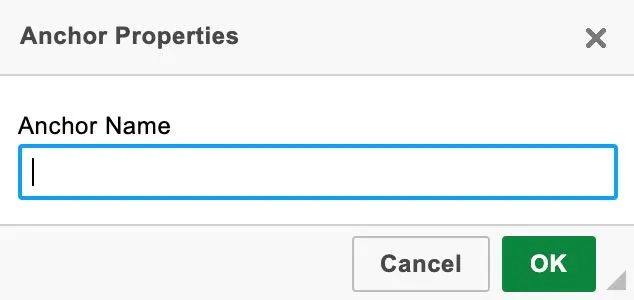
131. Anchor Properties task box
d) Enter a name for the anchor point.
e) Click on the OK button at bottom right.
E. Create a hyperlink
Hyperlinks are text which have been configured to lead to other parts of the website – or another website altogether – when clicked on.
Images may also be configured as hyperlinks, but the process is different – see Chapter 6, Section F.
1. Write a line of text which you will use for the hyperlink.
2. Highlight the line of text.
3. Click on this icon.

132. Icon to create link
4. The Link task box opens.
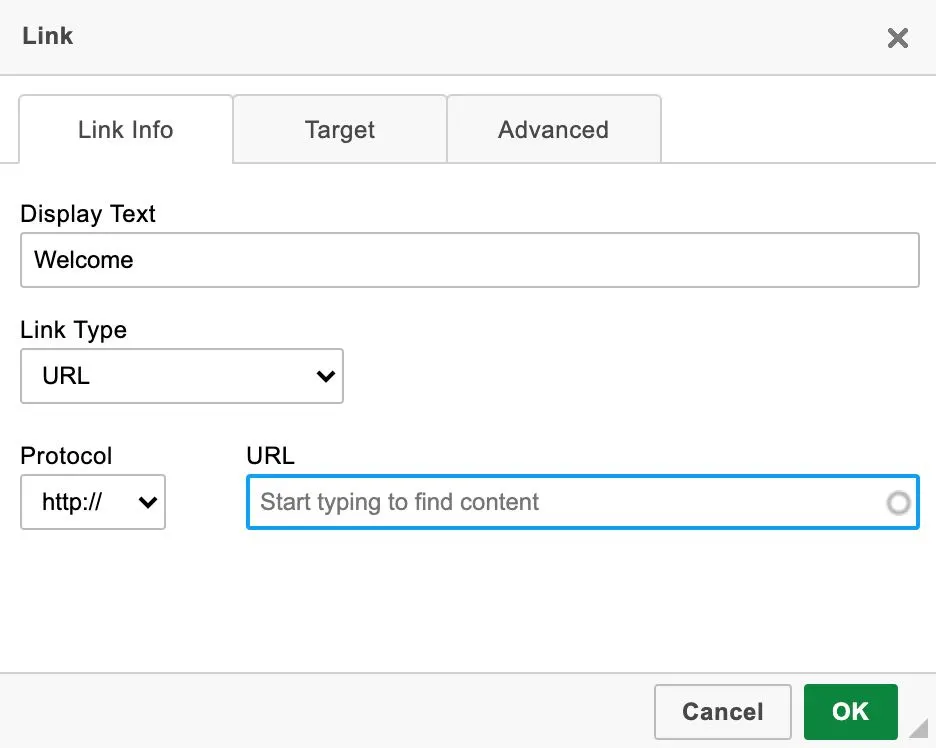
133. Link task box
5. Use the drop-down menu Link Type to choose the type of link.
a) URL – Link to another page on this website or to another website.
b) Link to anchor in the text – Select a previously created anchor point on the same page.
c) E-mail – Create a link to send mail to an e-mail address.
d) Phone – Create a link to dial a phone number (useful for visitors viewing the website on their mobile phones)
6. Depending on the Link Type selected, the entry field below it will require distinct information.
a) URL
1) Enter the URL of the separate website to which you wish to create the link.
2) Or begin typing the title of the page on your website to which you wish to create the link. A list of your pages will appear. Select the one desired.
b) Link to anchor in the text – Click on the drop-down menu labeled By anchor name and select from the list of previously-created anchor points.
c) E-mail – Enter the desired e-mail address.
d) Phone – Enter the desired phone number.
7. If you are creating a link to an external website, click on the tab Target to specify where the link opens.
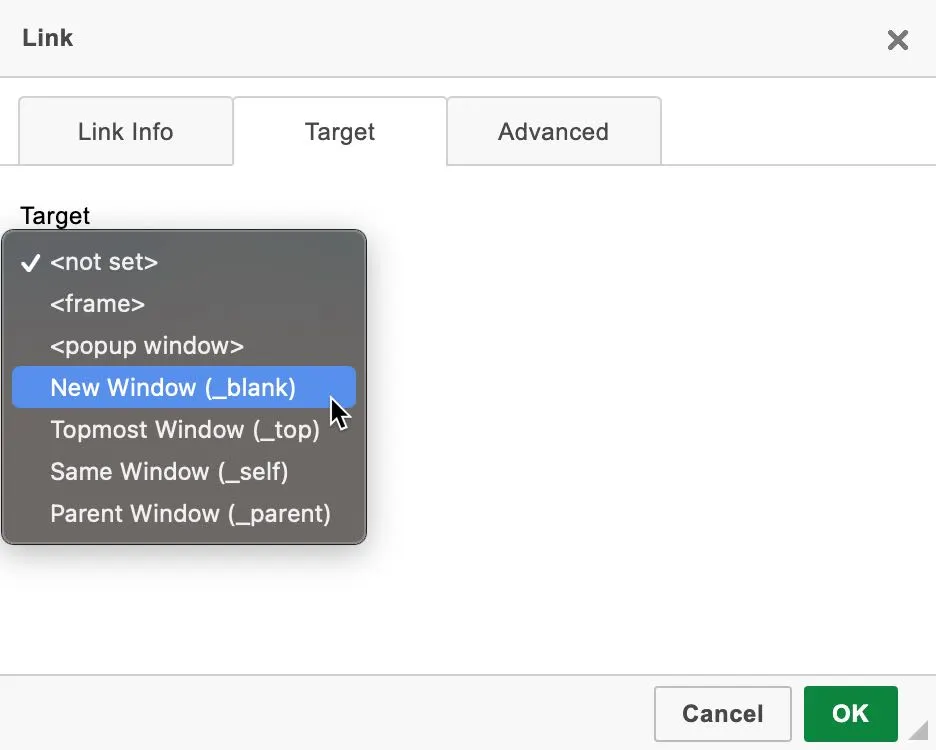
134. Target tab in Link task box
a) The recommended option is New Window (_blank).
(For anchor links and for internal links to other pages on this website or to media items, you do not need to specify the target; the default <not set> – which functions as Same Window – is the recommended option.)
8. Click on the OK button at the bottom right of the task box.
F. Other features
1. Find and replace text
a) To find text, click on this link.

135. Icon to find text
b) The Find and Replace task box appears with the Find tab active.
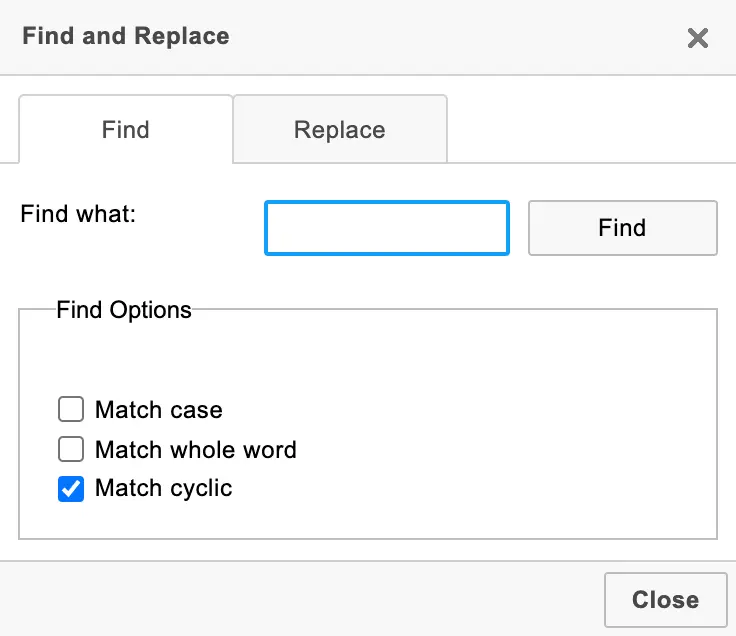
136. Find and Replace task box – Find mode
c) To replace text, click on this link.

137. Icon to find and replace text
d) The Find and Replace task box appears with the Replace tab active.
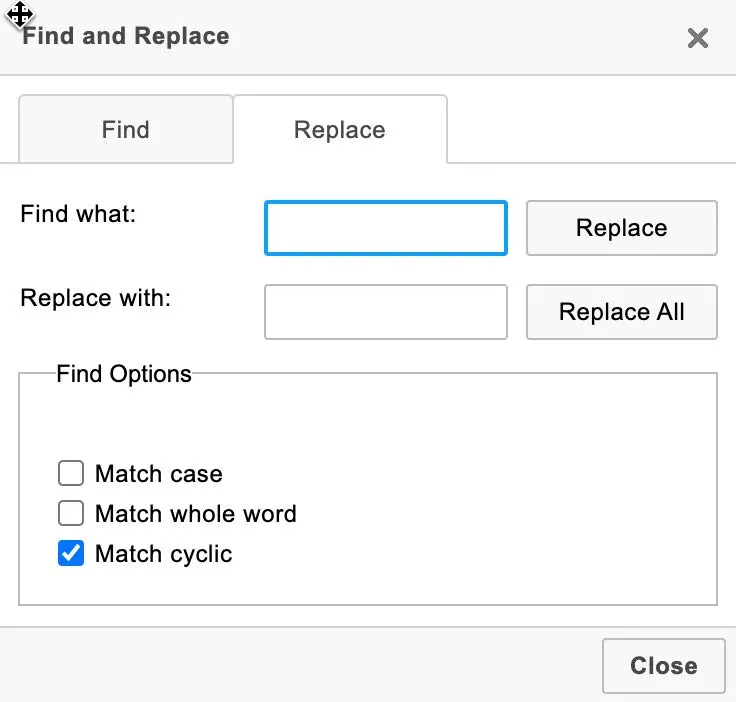
138. Find and Replace task box – Replace mode
e) Enter the desired words or phrases in the spaces for Find what and Replace with.
f) Use the check boxes in the lower section to refine your search.
g) To replace one word at a time, click on the Replace button.
h) To replace all items at once, click on the Replace All button.
i) When finished, click on the Close button at the bottom right.
2. Spell checker
a) Turn the spell checker on or off by clicking on this icon.

139. Spell checker icon
3. Change editor box to full-screen display
While editing page text, you may prefer to enlarge the rich-text editor box to fill the entire screen. This gives you more space to work.
a) Click on this icon.

140. Icon to enlarge editor box to full screen
b) Click on the same icon to return the editor box to normal size.
